


Want to customize the WordPress login page to match your website? The default WordPress login page is functional, but it looks almost identical on every website: the WordPress logo at the top, a neutral background and the familiar white login form.
That may be perfectly fine for a personal website. But once you are building a website for a business, client or organization, the default login page can quickly feel like an awkward interruption.
A visitor leaves a carefully designed website and suddenly arrives on a page that barely looks connected to it.
Fortunately, you can customize the WordPress login page to match the design and branding of your website. And you can go much further than simply replacing the logo: colors, buttons, backgrounds, forms and links can all reflect the existing design.
Why customize the WordPress login page?
Not every visitor will see the login page, but for some websites it is an important part of the user experience.
For example:
- WooCommerce stores with customer accounts;
- membership websites;
- websites with multiple administrators or editors;
- online learning platforms;
- portals and extranets;
- websites built for clients.
When someone moves from your website to /wp-login.php, it is reassuring if the page still looks and feels like part of the same website.
You do not need to completely redesign it. A few well-chosen changes can already make a substantial difference.
What can you customize on the WordPress login page?
The WordPress login page consists of several clearly defined elements.
You can replace the WordPress logo with your own logo and change the background so that it matches your website. The login form itself can also use a different background color.
You can also customize text and link colors and give the login button the same appearance as the other buttons on your website.
And a button is about more than its background color. Text color, hover colors, borders, border radius and padding all contribute to whether it actually feels consistent with the rest of the design.
It is this combination that makes the login page feel like a real part of the website rather than simply the standard WordPress login with a different color.
The problem with copying colors manually
Of course, you can enter all of these settings manually.
You can open the website, inspect the design, find the correct color values and copy them into the login page settings.
That works, but it has one important disadvantage: you are effectively creating a second version of your design system.
Many modern WordPress websites already store their colors and styles centrally.
For example in:
- Elementor Global Colors;
- Divi;
- the Astra Global Palette;
- WordPress Global Styles.
If the primary color of the website changes later, you ideally do not want to search for HEX codes and update them manually in several different places.
So instead of asking:
What color should this login button be?
a better question is:
What color does the website already use for its buttons?
Your website probably already has a design system
Page builders and modern WordPress themes increasingly rely on centralized design settings.
Elementor, for example, allows you to define Global Colors. Astra has its Global Palette, while WordPress itself supports centralized design settings through theme.json and Global Styles.
Divi also contains global and site-wide design settings that can be reused throughout a website.
This has an important advantage: design decisions are made in one place and reused across the site.
The WordPress login page traditionally sits outside that system.
And that is actually rather strange.
If your website already knows its primary color, what its buttons look like and which colors belong to the brand, why should you have to enter all of that information again manually for the login page?
Automatically use your website colors on the login page
That idea is also the basis of DP Websolutions – Login Branding.
Instead of creating another complete design system specifically for the login page, the plugin tries to use the design system that already exists on the website.
The plugin can read supported design settings from systems including:
- Elementor;
- Divi;
- Astra;
- WordPress Global Styles.
The detection screen then shows which website colors and button styles have been found.
You decide which of those values you actually want to apply.
The login page does not remain permanently dependent on your theme or page builder settings. When you apply a detected style, the resolved values are stored as fixed login page settings. You can then continue to customize them independently.
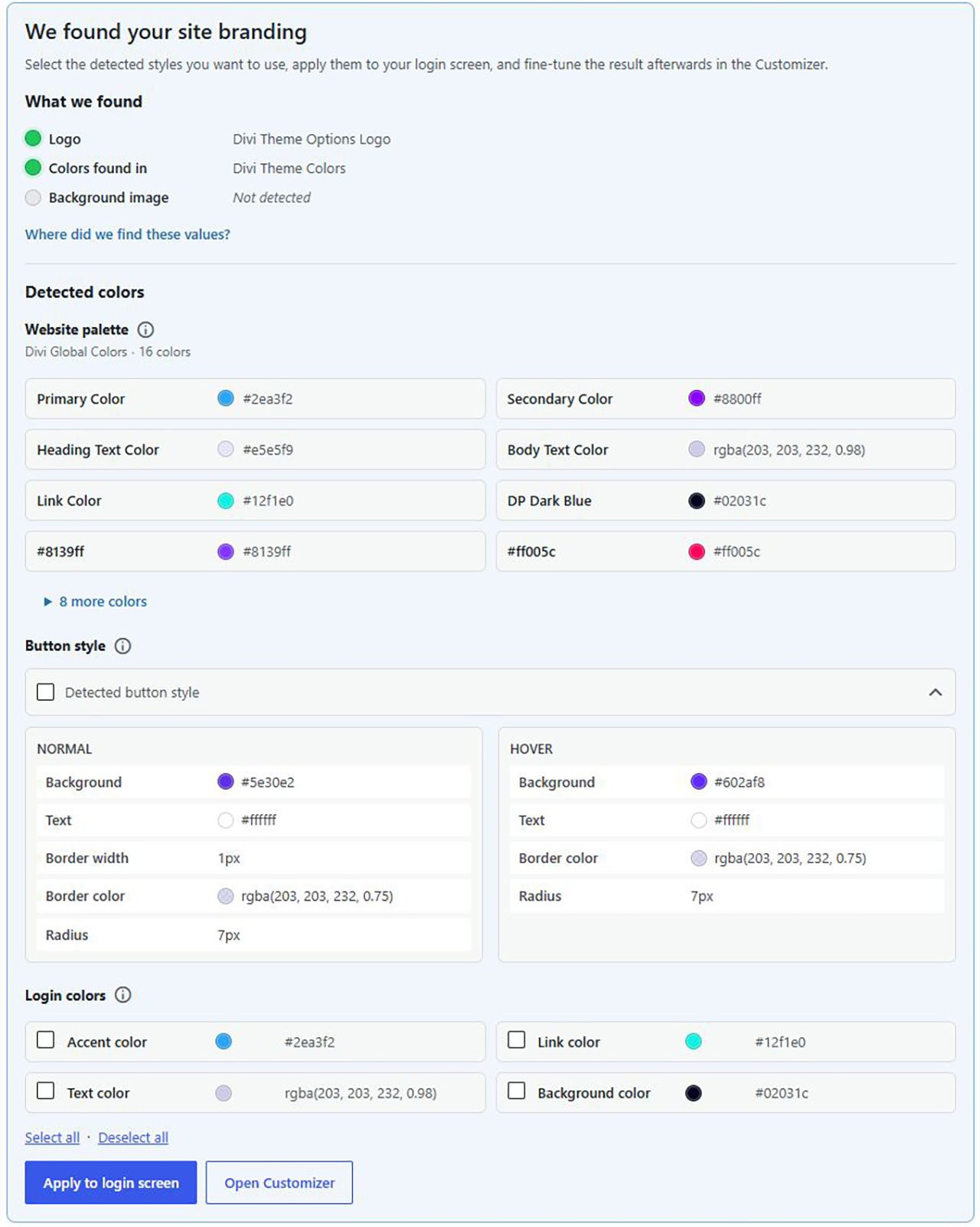
Detect first, then decide what to use
Automatic detection does not mean the plugin simply changes everything on your login page without asking.
That would not be very useful.
You may want to use the button styling from your website, for example, while choosing a different background for the login page. Or perhaps you only want to use one of your website's brand colors.
The process therefore consists of two steps.
First, the plugin checks which relevant design settings are available on the website. You then choose which of those settings you actually want to apply.
You remain in control, without having to look up every value manually.
Button styling is more than just a color
A button consists of more than a single background color.
On many websites, its appearance is defined by a combination of properties such as:
- background color;
- text color;
- hover color;
- border color;
- border width;
- border radius;
- vertical and horizontal padding.
If you only copy the button color, the result can still look noticeably different from the buttons used elsewhere on the website.
DP Login Branding therefore also tries to detect relevant button styling from the supported design system where possible.
Normal and hover states can be viewed and customized separately in the settings.
Customize the WordPress login page further
After using the existing website colors as a starting point, you can continue customizing the login page.
You can use your own logo, background, form colors, links and buttons.
The WordPress Customizer lets you preview the result directly while making changes.
The principle remains the same: your existing website is the starting point. You do not have to create a second design from an empty color palette.
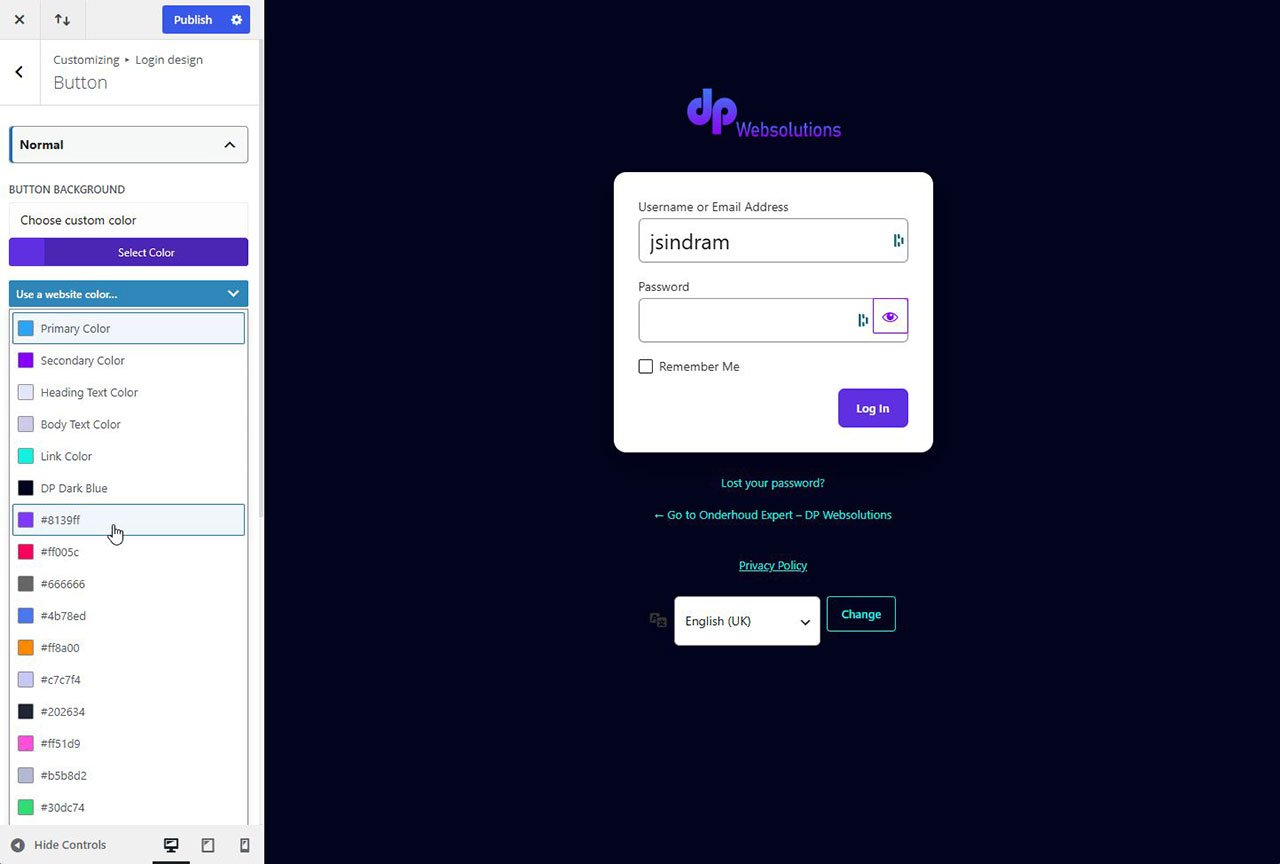
Elementor, Divi, Astra and WordPress Global Styles
Not every WordPress website stores its design settings in the same way.
Elementor has its own global settings, Divi uses a different system and Astra has its Global Palette. Modern block themes can also define their designs through WordPress Global Styles.
This means that the relevant design information has to be read differently for each system.
DP Login Branding translates the relevant values from supported design systems into a consistent set of login page settings.
For the user, the result is simple: you can see which colors and button properties were detected and choose which ones you want to use.
A login page does not need to be a separate design
Customizing wp-login.php is often treated as a separate design task.
Choose a logo. Choose a background color. Enter a button color. Configure a few link colors.
But that approach is really backwards.
On an existing website, many of those design decisions have already been made.
A consistent WordPress login page does not have to start with designing everything again. It makes much more sense to start with the design that is already there.
That not only creates a more recognizable login experience, but also avoids unnecessary duplicate work.
DP Websolutions – Login Branding is available for free from WordPress.org and can be installed directly from your WordPress dashboard.