
You've built a beautiful website with Divi. You've chosen your brand colors, added your logo, and carefully styled your buttons. But when you visit your WordPress login page, you're still greeted by the default WordPress logo and that familiar blue login button.
Wouldn't it be nice if your WordPress login screen matched the rest of your Divi website?
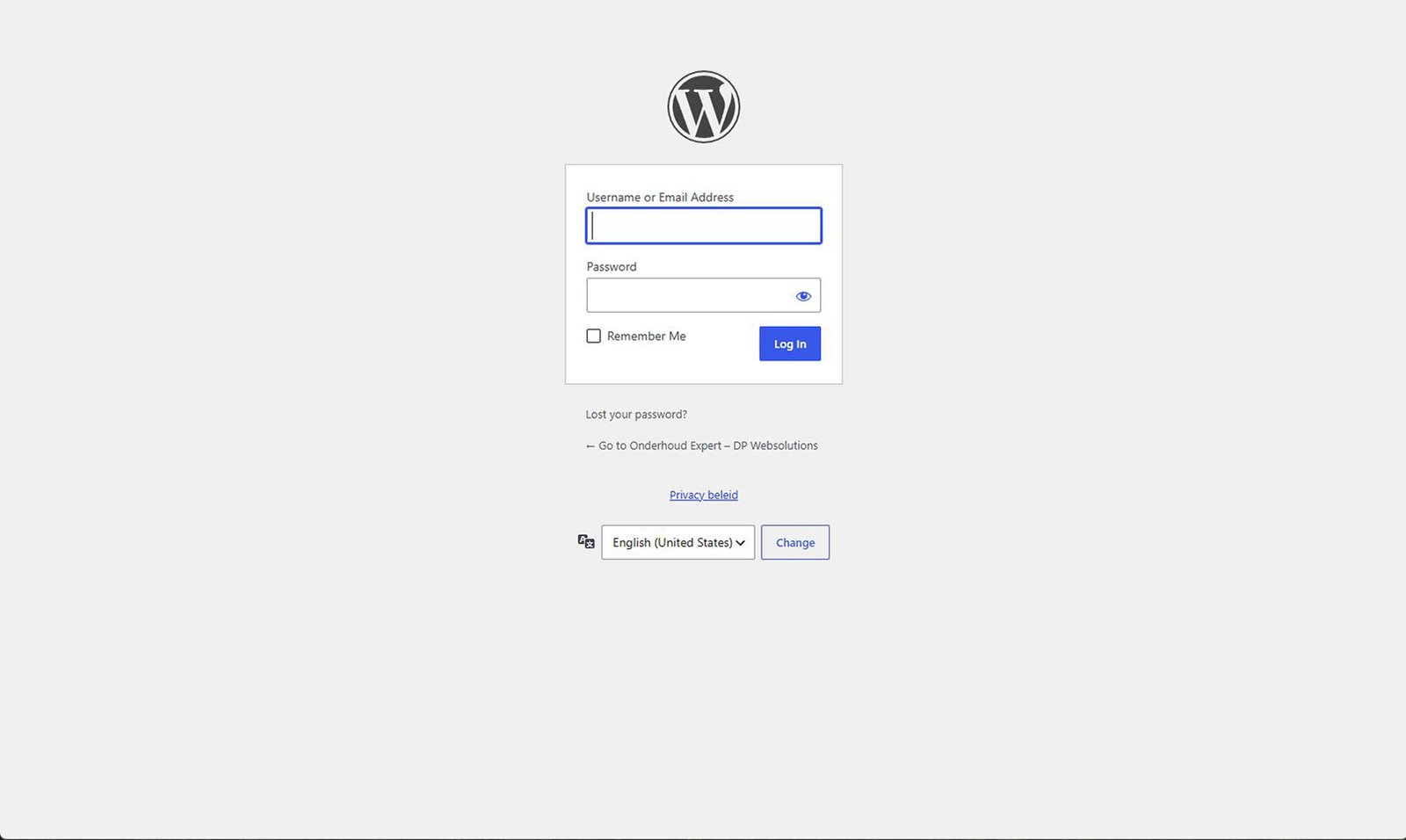
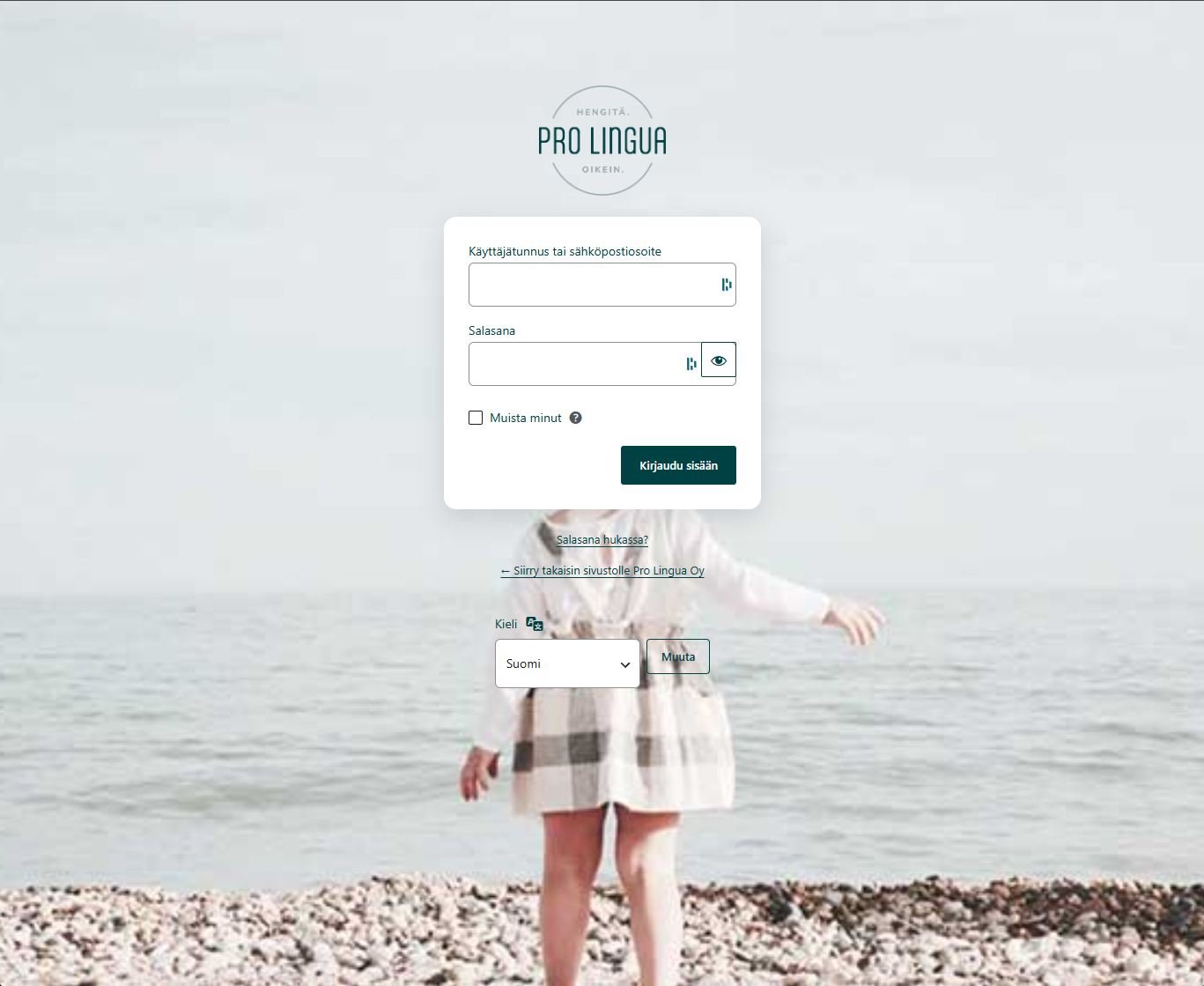
Fortunately, you don't need to write custom CSS or build an entirely new login page. In this tutorial, I'll show you how to customize your WordPress login page with Divi 5 and give the original wp-login.php your own branding using a free plugin.
We'll use DP Websolutions – Login Branding, a free WordPress plugin that can detect your existing website's design settings and help you apply them to your login screen.
Divi Login Module vs. the Default WordPress Login Page
Before we start, there's an important distinction worth understanding.
Divi includes a Login Module that allows you to place a login form on a page created with the Divi Builder. This is useful when you're building a membership website, customer portal, or custom frontend login experience.
However, creating a page with Divi's Login Module does not automatically redesign your original WordPress login screen at wp-login.php.
That's the page you, your clients, and other website administrators typically use to access the WordPress dashboard.
If you simply want your existing WordPress login screen to match your Divi website, there's no need to create an entirely separate page.
Customize Your Divi Login Screen Without Writing CSS
DP Websolutions – Login Branding helps you bring your existing website branding to the native WordPress login page.
The plugin supports Divi, including Divi 5, and can detect supported design settings such as your website's colors and button styling. Rather than starting from scratch, you can use those settings as the foundation for your login screen.
Depending on your website's configuration, you can customize:
- Your website or company logo.
- The login page background color or background image.
- The login form background and border radius.
- Button colors, borders, padding, and rounded corners.
- Normal and hover button styles.
- Button typography and alignment.
- Text, accent, and link colors.
The plugin shows the design values it can reliably detect from your website. You decide which settings to apply and which ones to customize manually.
How to Customize Your WordPress Login Page with Divi 5
Step 1: Install the Free Login Branding Plugin
Open your WordPress dashboard and navigate to Plugins → Add New Plugin.
Search for DP Websolutions – Login Branding, install the plugin, and activate it.
You can also learn more about its features and see examples on the official Login Branding plugin page.
Step 2: Detect Your Divi Website's Branding
Once the plugin is activated, open Appearance → Login Screen in your WordPress dashboard.
The plugin analyzes supported design settings from your active website and displays the styles it has detected alongside your current login screen settings.
If you've configured global colors or button styles in Divi, the plugin can recognize supported values and offer them for use on your WordPress login page.
There's no need to hunt down individual color codes or manually recreate every button setting.
Step 3: Apply Your Divi Styles to the Login Screen
Select the detected design elements you want to use and click Apply to login screen.
You can choose the elements that suit your login page rather than replacing everything indiscriminately.
The plugin applies your chosen styling to the WordPress login screen without changing your Divi website or its global design settings.
For example, you might use your existing Divi button style but choose a completely different background for your login page.
Step 4: Fine-Tune Your Design in the WordPress Customizer
Want a larger logo, a different background image, or slightly more rounded buttons? Open the WordPress Customizer through the plugin.
You can adjust the various parts of your login screen while viewing the results in a live preview.
Login Branding uses a dedicated, protected preview instead of repeatedly loading the real WordPress authentication page while you're editing.
Once you're happy with the result, click Publish to save your design.
Step 5: Check Your New WordPress Login Page
Visit your website's original WordPress login URL:
yourdomain.com/wp-login.php
Your login screen should now display the branding you've selected.
It's also worth checking the page on a mobile device to make sure your logo, form, and buttons look good at smaller screen sizes.
Will Your Login Page Automatically Update When You Change Divi?
No, and that's intentional.
Login Branding uses your existing website design as a starting point, but saves your chosen login styles separately.
If you update your global colors or button styles in Divi later, your WordPress login page won't unexpectedly change with them.
When you're ready to update your login screen, you can detect your website's current settings again and apply the changes you want.
This gives you the convenience of reusing your Divi design without introducing an ongoing dependency on your theme's styling.
Does Login Branding Work with Divi 4?
Yes. DP Websolutions – Login Branding supports both Divi 4 and Divi 5.
The exact design settings that can be detected depend on your Divi version and how you've configured your website's styles.
Any additional login styling can be customized manually through the WordPress Customizer.
Do You Need a Separate Login Page?
Not if your goal is simply to brand the existing WordPress login screen.
A separate login page built with Divi can be useful for membership websites or custom frontend experiences. But if you want to customize the original WordPress login page used by administrators and other WordPress users, keeping the native login screen is often the simpler approach.
With Login Branding, you keep your existing login URL and functionality while changing how the page looks.
Give Your WordPress Login Page the Same Look as Your Divi Website
I've built and maintained plenty of WordPress websites, and I've always found it slightly disappointing when an otherwise carefully designed website still has the generic WordPress login screen.
That's why I developed DP Websolutions – Login Branding: to make it easier to give the native WordPress login page the same professional appearance as the rest of your website, without writing custom CSS.
It works with Divi 4 and Divi 5, and it's completely free.
Ready to customize your WordPress login page?
Discover DP Websolutions – Login Branding and get started for free →